- Description
- The Python API configuration for Azure PostgreSQL
- The swagger generation & configuration of my Python API
- Generate your Docker image & push it to azure
- Create my Azure Container Web App relying on ACR
Description
I decided to writte my first article on “How to deploy a docker image of a Python API in Azure Web App for Container thanks to ACR thanks to Azure Container services” To go a bit further with this API, I also generated a swagger/OpenAPI which described this API”.
The Python API configuration for Azure PostgreSQL
To create my Python API, I used the following Python tutorial. This tutorial provide a API to manage user and groups.
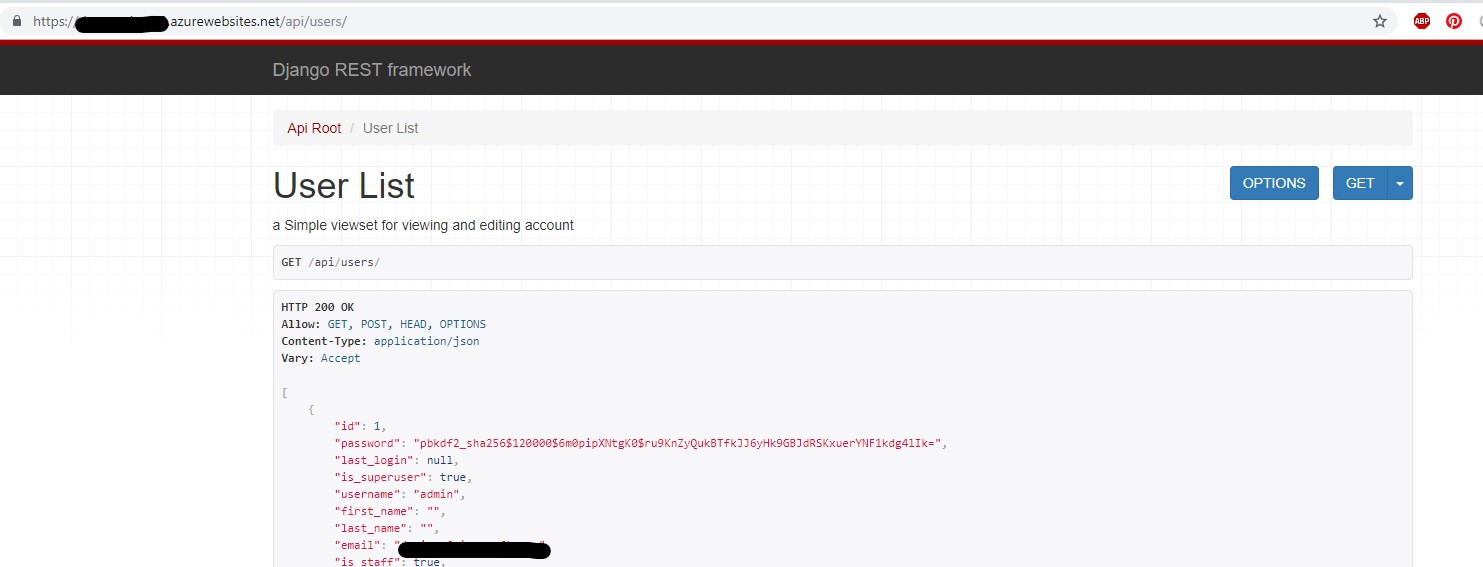
Below, I highlight the most important steps in the Python API docker Image creation & config that I used to deploy this solution in Azure.
Azure PostgreSQL DB & Python config
The Python API described in the tutorial rely on a local DB. As I expected to host my API in Azure, I created my DB direct in Azure and used a PostgreSQL DB.
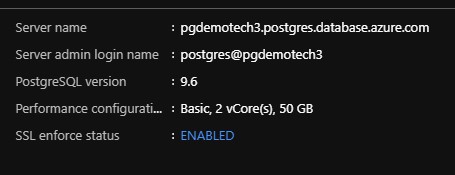
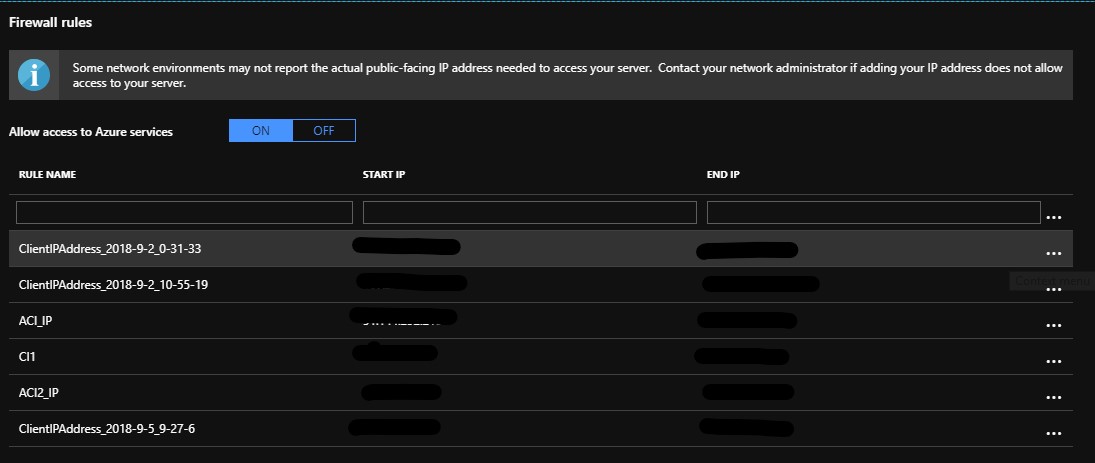
To protect my DB in Azure, I activated the PostgreSQL Firewall and add my computer local IP address and the Azure Web App Outbound IP Adresses (talk about this point later in this article).
Python config for Azure PostgreSQL DB
In order to use my Azure PostgreSQL DB hosted in Azure within my Python API, I have first modify the DB settings in the settings.py file (created in the Python tutorial).
DATABASES = {
    'default': {
        'ENGINE': 'django.db.backends.postgresql_psycopg2',
        'NAME': 'demotech3db',
        'USER': 'postgres@pgdemotech3',
        'PASSWORD' : 'xxxxx',
        'HOST': 'pgdemotech3.postgres.database.azure.com',
        'PORT': '5432',
        'OPTIONS': {
            'sslmode': 'require',
        },
    },
In my Python environment, I also added the following Python packages :
    Django==2.1.1
    djangorestframework==3.8.2
    psycopg2-binary==2.7.5
Test Azure the Python API with Azure PostgreSQL DB
First I’ve following the Python tutorial and created an admin user for my API :
python manage.py createsuperuser --email dovives@example.com --username admin
Then I run the following command to test my API locally :
python.exe manage.py runserver 0.0.0.0:8000
The swagger generation & configuration of my Python API
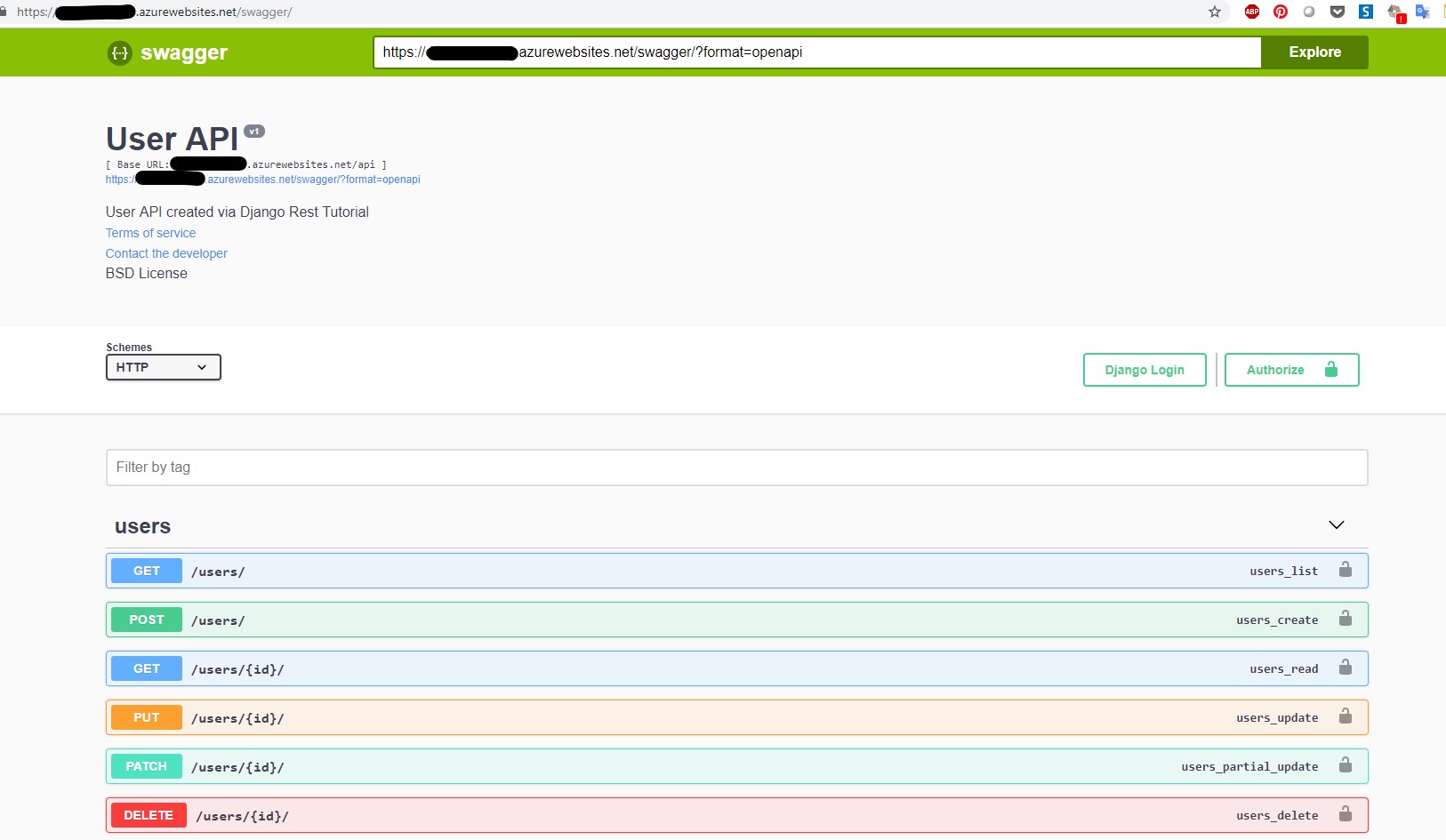
To go a bit further with this Python API, I generated a swagger to describe this API. To do so, I rely on the following tutorial
Install the Python Package
I used the following command ‘pip install -U drf-yasg’ to install the correct python package. The Django REST API already implement the correct tage to document your API.
Update the settings & URLs Path in
First tn the settings.py file, I added the ‘drf_yasg” application :
INSTALLED_APPS = [
    'django.contrib.admin',
    'django.contrib.auth',
    'django.contrib.contenttypes',
    'django.contrib.sessions',
    'django.contrib.messages',
    'django.contrib.staticfiles',
    'rest_framework',
    'drf_yasg',
]
then in the urls.py file, I added the following URL patterns and add the swagger ones:
    urlpatterns = [
        url(r'^swagger(?P<format>\.json|\.yaml)$', schema_view.without_ui(cache_timeout=0), name='schema-json'),
        url(r'^swagger/$', schema_view.with_ui('swagger', cache_timeout=0), name='schema-swagger-ui'),
        url(r'^redoc/$', schema_view.with_ui('redoc', cache_timeout=0), name='schema-redoc'),
        path('admin/', admin.site.urls),
        path('api/', include(router.urls)),
    ]
Generate the swagger file for your API
To generate the swager file, I used the following tool to generate the swagger files of my API.
I created a swagger folder un my API project root folder where I placed all the swagger generated file above.
Note: The swagger file is quite complete thanks to the usage of the Django tutorial. It includes OOB swagger/openapi 2.0 comments in the API. In a custom API, we should have correctly comment our API to auto generate such a swagger files.
Test the swagger documentation of my API
To test the swagger of my API, I ran my project and access the following URLs:
-
https://myapiurl.local/swagger
-
https://myapiurl.local/swagger/?format=.json (to download my swagger in JSON)
-
https://myapiurl.local/swagger/?format=openapi
-
https://myapiurl.local/swagger/?format=.yaml (to download the Yaml file version of my swagger)
Generate your Docker image & push it to azure
Now that we’ve created a Python API documented with swagger and interacting Azure PostgreSQL, the next step is to generate a Docker image.
Create the Docker file for our Python API :
In oder to generate an image of my Python API, I rely on python 3.6 image.
I’ve created the following docker file to create my image :
    FROM python:3.6
    ENV PYTHONUNBUFFERED 1
    RUN mkdir /code
    WORKDIR /code
    ADD ./pitchounrestapi /code/pitchounrestapi
    ADD ./swagger /code/swagger
    ADD manage.py /code/manage.py
    RUN pip install --upgrade pip
    RUN pip install -r ./pitchounrestapi/requirements.txt
    EXPOSE 8000
    CMD ["python", "manage.py", "runserver", "0.0.0.0:8000"]
Then run the following Docker commands to build and run my image :
Build Docker Image
docker build -t demotech3:1.0 .
Run Docker Image locally
docker run -d -it -p 8000:8000 --name mydemo2 demotech3:1.0 python3 manage.py runserver 0.0.0.0:8000
Normally, you should be able to access your Python API on the 8000 port.
Create your Azure Container Registry and push your local images in your ACR
In order to use our image in Azure, I choose to push my image in an Azure Container Registry.
I created a standard registry and call it “Pithcoun”:
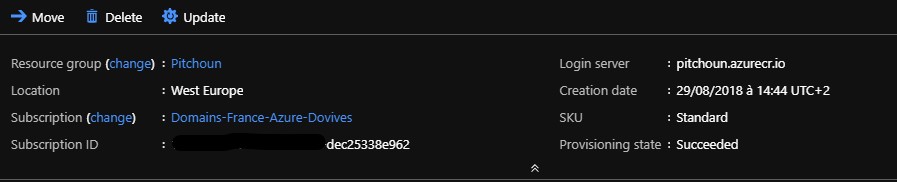
Then I use the Azure CLI commands to deploy my local image in Azure COntainer Registry :
Login to Azure
az login
Login to my Azure Container registry
az acr login --name Pitchoun
Retrieve my Azure Container registry login server
    az acr list --resource-group Pitchoun --query "[].{acrLoginServer:loginServer}" --output table

            AcrLoginServer
            -------------------
            pitchoun.azurecr.io
Tag my local image with the Azure Container registry login server
docker tag demoapitech3:1.0 pitchoun.azurecr.io/demoapitech3:1.0
Push my local image to my Azure Container registry
docker push pitchoun.azurecr.io/demoapitech3:1.0
Check image availability in my Azure Container registry
Create my Azure Container Web App relying on ACR
Now that my Python image is available in Azure Container regristry, as well as my Azure PostgreSQL DB, I can host my API in a Azure Web Application Container based on my image of my ACR.
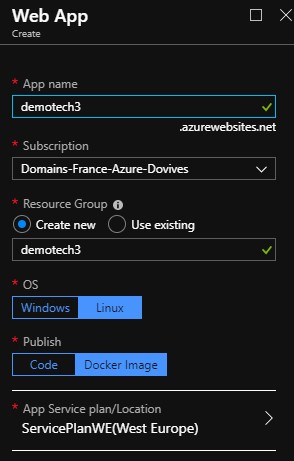
Create a Web Application for container
When creating the Web App for container, choose “Linux” OS & “Docker Image” option:
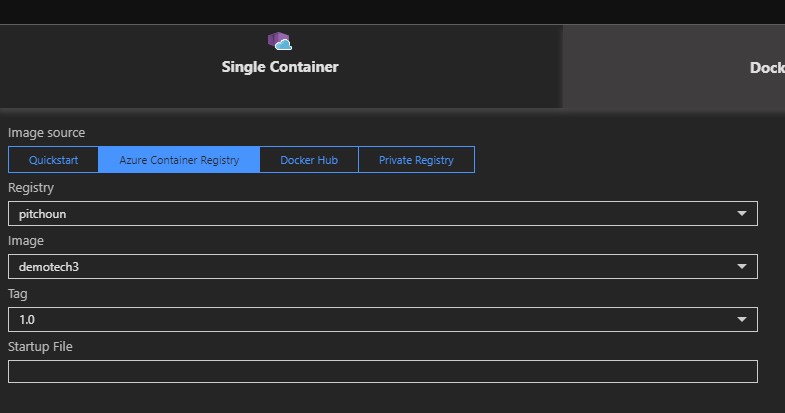
Then in the Conainer menu, I choose my ACR and my image :
Then create it.
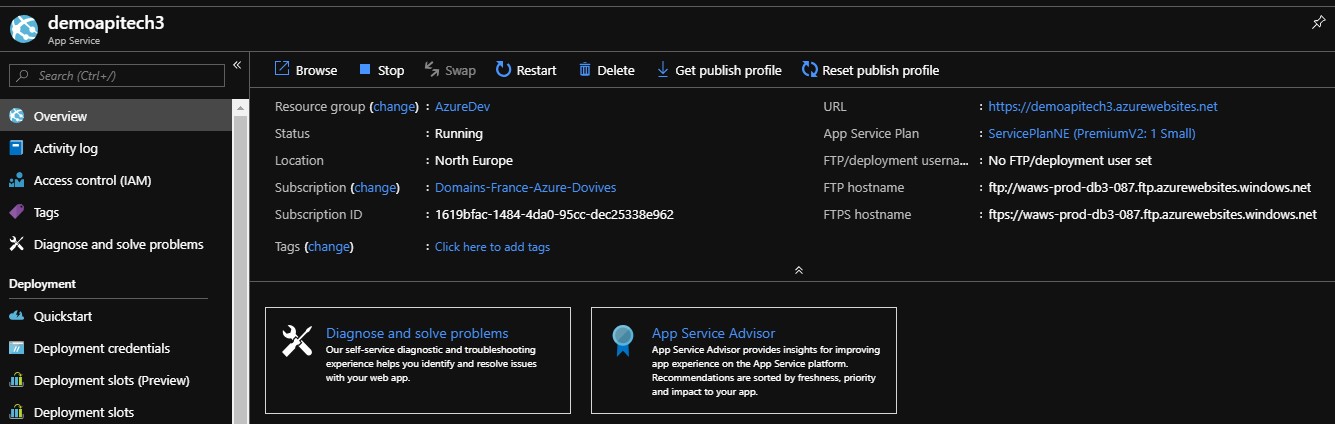
Retrieve the outbounds IP for Azure PostgreSQL DB Firewall config.
Now that our Web App is created, we need to allow the outbound IP addresses of Web App on the Azure PostgreSQL DB.
Test your web Application access
Now we should be able to access your API hosted in Azure !
Enjoy it!